
Deleted files and the access log
A deleted file can be brought back for 30 days. Every file also keeps a record of who did what to it, which outlives the file itself.
Delete a file
- On the client's Files tab, click ⋯ on the file and choose Delete.
- Click Delete file.
The file leaves the list, and the client's portal if it was shared. Any links to it stop working. See Share a file by link.
Admins and the Owner (shown as Portal admin in the app for now) can delete any file. Clients can delete files they uploaded themselves, from their portal.
Restore a file
- On the client's Files tab, click Deleted files.
- Click Restore next to the file.
It goes back where it was (or to the top level, if its folder has since been deleted), shared or internal as before. Links to it don't come back: make a new one. Only Admins and the Owner can restore. A file a client deleted from their portal can be restored the same way.
Deleted files can't be opened or downloaded until they're restored. Click Back to files to leave the list.
After 30 days
A file deleted more than 30 days ago is removed for good, once a day. It can't be restored after that. Its Access log is kept.
The access log
Click ⋯ on a file and choose Access log to see everything that happened to it, newest first, with who did it, when, and the IP address it came from:
- Uploaded, Downloaded, Renamed, Moved
- Shared with the client, Made internal
- Deleted, Restored
- Link created, Downloaded by link, Link revoked
Downloads by your team, by clients in the portal, through Download all and through links all appear. A download by link shows only the IP address, since the person didn't sign in. When an Admin uses View as to see the portal as a client and downloads a file, the log names the Admin, not the client.
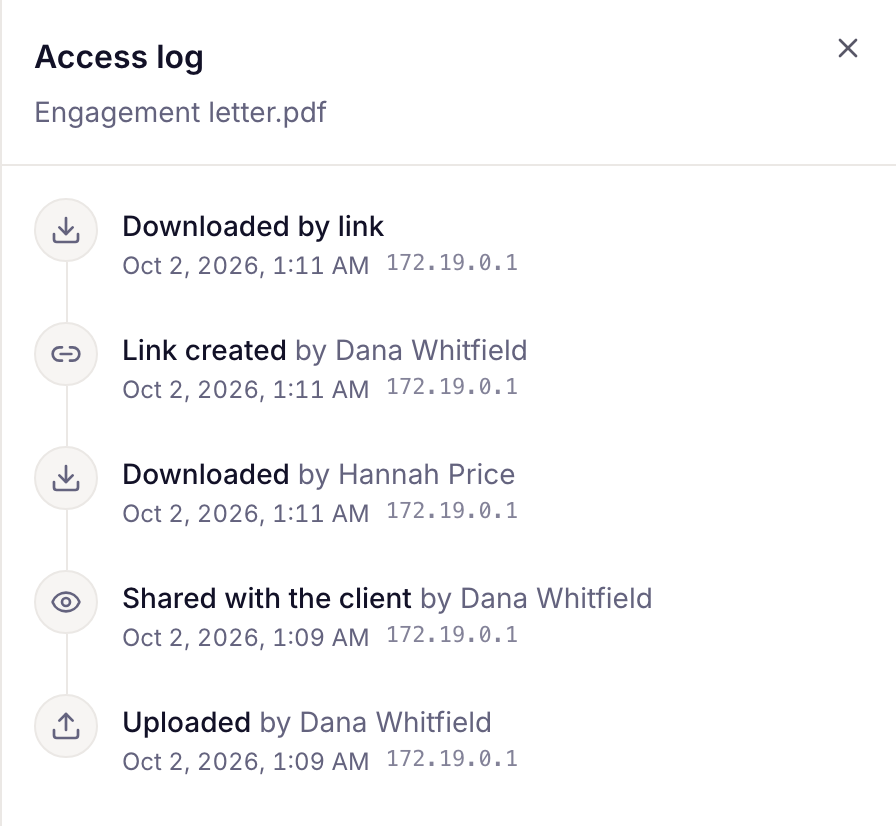
The access log is on deleted files too, so you can still see who had a file before it was removed.
Related: Share files with a client · Organise client files