
Billed hours and write-downs
Every entry has two figures. Tracked is the time actually worked, and it never changes behind your back. Billed is what the client is charged. Usually billed is the tracked time, rounded up if your workspace rounds. When you decide to charge less (a write-down) or more (a write-up), you set the billed hours by hand. The tracked time stays as it was recorded.
Set billed hours on an entry
You can set billed hours from three entry lists: a client's Time tab, a project's page and the Team time report. It isn't offered on Track or My time.
- Find the entry in one of those lists.
- On the entry, click the scales icon (Billed hours…). On a phone it's a Billed hours button on the card.
- Under Bill as, type the hours to charge.
1.2,1:12,1h12mand72mall work. - Click Save.
The dialog shows Tracked and Billed now side by side so you can compare.
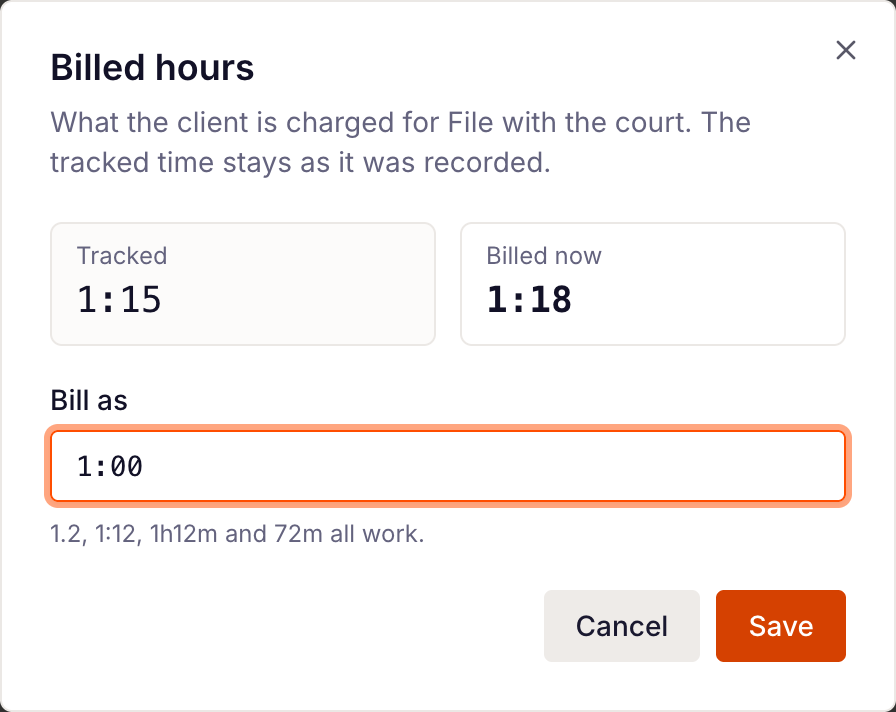
To undo it, open the dialog again and click Reset to tracked. Billed goes back to the tracked time, rounded as usual.
When you can't
The button only appears on entries that are stopped, billable and not yet invoiced. Timebun also refuses:
- Entries imported from Harvest — their billed hours stay as Harvest had them.
- Entries that drew hours from a balance that has since expired.
- Zero hours. To charge nothing, mark the entry non-billable instead.
What changes
- The charge. The entry is re-priced on the billed hours.
- The client's balance. On retainer time, hours written down go back to the client's balance, and hours written up are drawn from it. Anything a write-up takes beyond what's left bills as overage.
- What the client sees. The portal and its export show the billed hours.
- It sticks. Editing the tracked time, the memo or the billable switch keeps your figure. Resuming the entry and stopping it again drops it.
Spotting a write-down
Wherever entries are listed, a small dot next to an entry's time marks one that was written down or up. Click the time to see Tracked, Billed as and by how much, for example "Written down from 1:30." Team members see only the tracked time.
On a draft invoice
Once an entry is on an invoice, even a draft, it's locked, so you change its billed hours on the invoice instead. While the invoice is a draft, edit the line's Hours: that also changes the entry's billed hours, and its tracked hours stay. The line then shows the tracked figure underneath, and the invoice summary adds a Written down (or Written up) tile with the hours and how much less (or more) that is than tracked.
The Team time report totals Billed and Written down for any period, and its export has both for each entry. See Team time report.
Related: Billable and non-billable time · Create an invoice from unbilled work · How balances work