
Void an invoice or issue a credit note
A finalised invoice keeps its number for good. To correct one, you either void it or issue a credit note against it.
Void an invoice
Use this when the invoice is wrong and nothing has been paid.
- Open the invoice and click Void.
- Confirm with Void invoice.
Stripe cancels it and keeps the number. Nothing is charged, and everything it billed — hours and expenses — becomes billable again, ready for a corrected invoice.
Void only appears on an invoice that is open or uncollectible and has had no payment at all. A partly paid or paid invoice needs a credit note. A draft isn't voided — use Delete draft.
Issue a credit note
- Open the invoice and click Credit note.
- Tick the lines to take back and enter how much of each. A line already partly credited shows what's left.
- Choose a Reason — it prints on the credit note: - The work or the amount changed - Billed twice - The client was not satisfied - Fraudulent
- If the credit is more than what's still owed (always the case on a paid invoice), choose Where does amount go?: - Onto their account (the default) — applied automatically to the client's next invoice. - Refund to their card or bank — moves real money back out of your Stripe balance. - Already settled elsewhere — a cheque, a transfer, or written off outside Stripe.
- Optionally add a Note for the client.
- Check Total credited and Then outstanding, click Review, then Issue credit note.
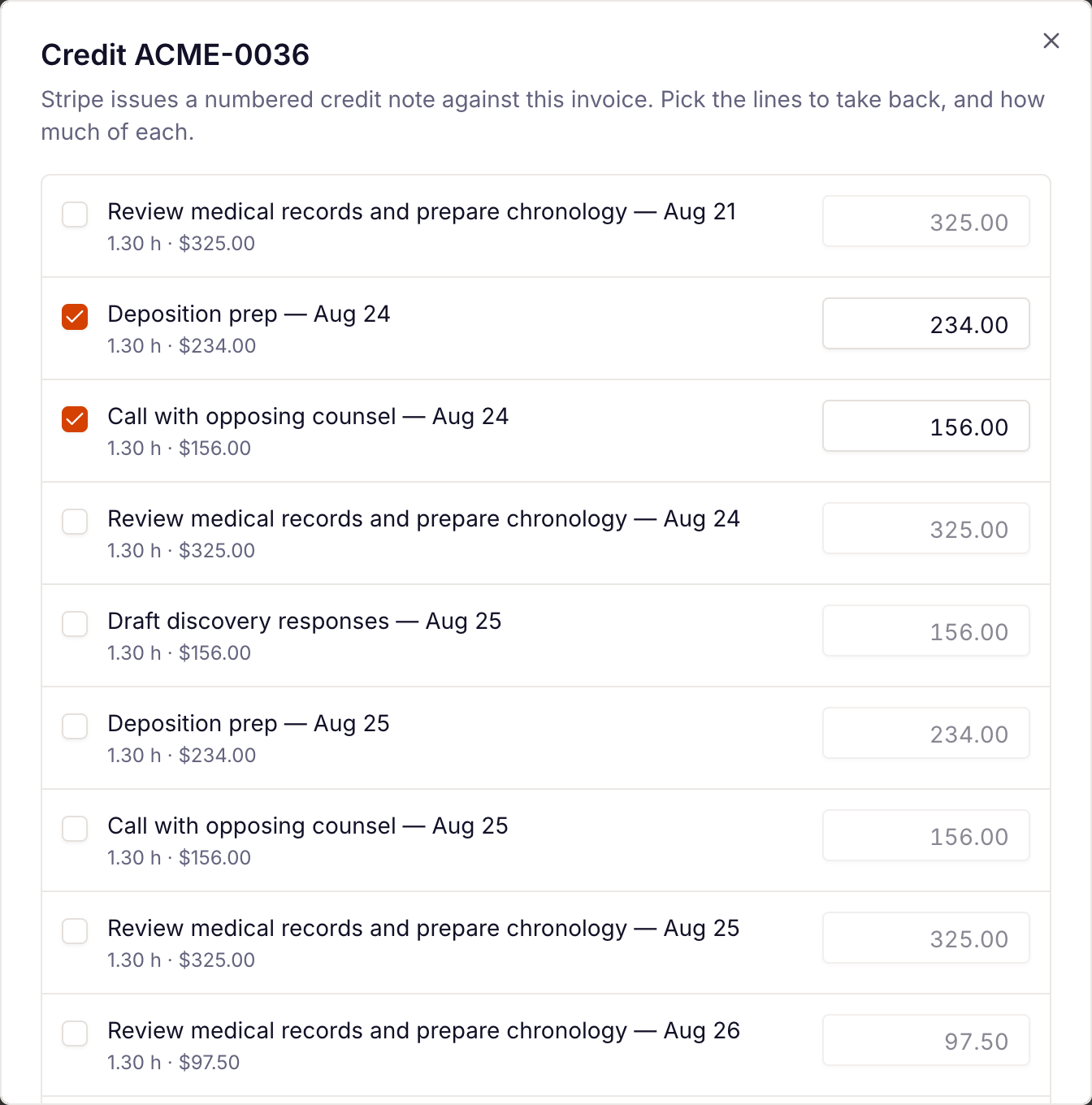
Full or partial credit — it matters
- Credit a line in full and its time entry or expense is released: it becomes billable again and lands on the next draft.
- Credit less than the whole line and only the price changes. The work stays billed on this invoice and won't appear on a later one.
The dialog tells you which is about to happen before you confirm.
After issuing
The Credit notes section on the invoice lists each note with its number, date, reason and amount. Click the open icon for Stripe's PDF.
Timebun doesn't email the client about a credit note. Stripe may, depending on the customer email settings in your Stripe account — see Stripe's Send customer emails. Clients with portal access see the credit note on the invoice in their portal.
To reverse one, click the undo icon and confirm Void credit note. The invoice goes back to owing what the note took off, and any work it released is locked back to this invoice — unless it's already on a later invoice.
A payment that isn't on one of your Timebun invoices — for example a plan a client was charged for twice — can't be refunded from Timebun. Refund it in your Stripe dashboard.
Retainer, Top-up and Upgrade invoices
Credit note only appears on invoices built from tracked time and expenses. A Retainer, Top-up or Upgrade invoice bills a plan or a block of hours, so there's nothing to credit in Timebun. See The four types of invoice.
- Not paid at all? Click Void in Timebun, as above. The hours were never added, so there's nothing else to undo.
- Paid or part paid? Issue the credit note or the refund in your Stripe dashboard.
What Timebun picks up from a correction made in Stripe:
- The amounts on the invoice. If it still owed money, what's outstanding goes down by what you credited.
- Not the credit note itself. It isn't listed under Credit notes on the invoice, and Billed this month and Billed this year aren't reduced by it.
- Not a refund. The invoice stays Paid in Timebun.
- Not the hours. Hours the invoice added stay on the client's balance. To take them back, open the client's Overview tab, click the adjust button (Adjust this balance) on that block of hours, and enter a negative number with a note. A balance can't go below zero, so hours already used can't be taken back this way. See How balances work.
Credit notes are Stripe's own documents, numbered in the same sequence as your invoices. On the Invoices page, Billed this month and Billed this year are net of credit notes.