
See and withdraw connected assistants
Settings → Workspace → Integrations → Connections lists every AI assistant that has been connected to your workspace, and lets you withdraw one.
- Team members see only the connections they made themselves.
- Admins and the Owner (shown as Portal admin in the app for now) see everyone's.
Every Timebun plan includes connecting assistants. You can withdraw a connection even while your workspace is read-only.
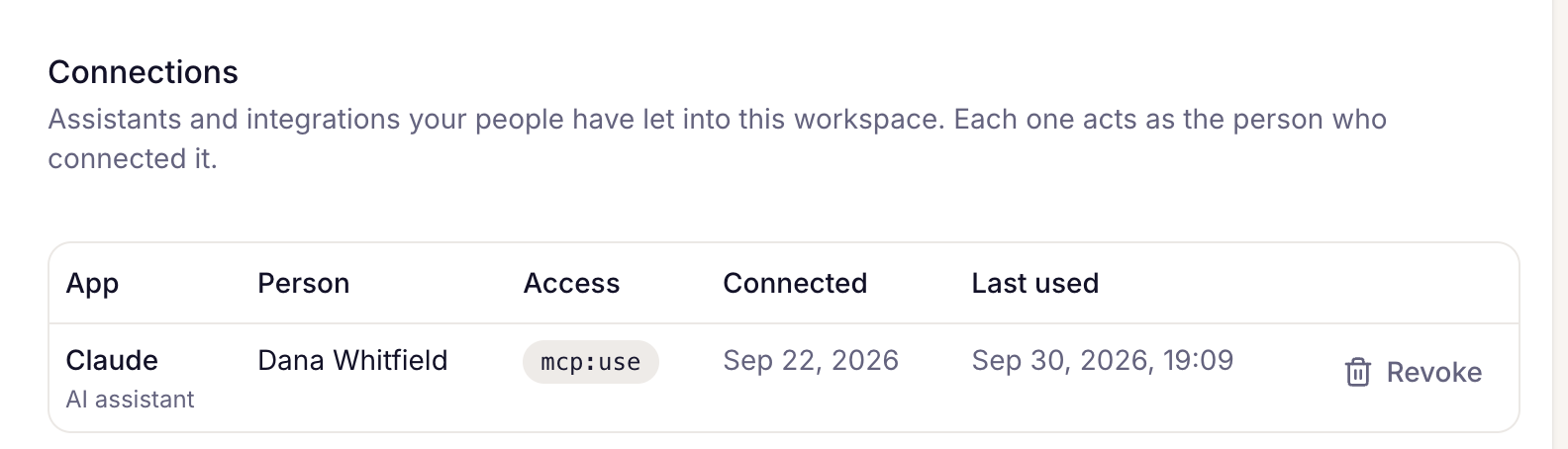
What the list shows
Each row is one app connected by one person:
- App — the assistant's name, marked AI assistant (or Integration).
- Person — who approved it. The app acts as that person.
- Access — what they agreed to, as short codes.
- Connected — when they approved it.
- Last used — when the app last reached your workspace, or Never used.
If one person connects the same assistant twice, it's still one row.
Withdraw a connection
- Click Revoke on the row.
- Click Withdraw connection to confirm.
The assistant loses access straight away, from its next message. It can't be undone here: to use it again, the person has to connect it again and approve it on the consent screen.
You can always withdraw your own connections. Admins can withdraw anyone's except the Owner's; the Owner can withdraw anyone's. Where you can't withdraw a connection, there's no Revoke button.
When a connection ends on its own
Timebun withdraws a person's connections automatically when:
- they're removed from the workspace or their account is deleted
- their role changes
- they change or reset their password
The row disappears from the list when that happens.
If the workspace becomes read-only because its Timebun trial or subscription has ended, connections aren't withdrawn: assistants can still look things up but can't change anything until the workspace subscribes. See Why is my workspace read-only?
Related: Connect Claude or ChatGPT, Create an API token.