
Connect Claude or ChatGPT to Timebun
You can connect an AI assistant such as Claude or ChatGPT to your Timebun workspace and ask it things like "what did I work on last week?" or "log two hours yesterday on the Acme lease". The assistant acts as you, sees only what you can see, and only in the workspace you choose.
Before you start
- Anyone on your team can connect an assistant: Owner (shown as Portal admin in the app for now), Admins and Team members. Clients can't.
- Every Timebun plan — Starter, Unlimited and Enterprise — includes connecting an assistant, listed as MCP (Model Context Protocol, the open standard assistants use to connect to other apps) on the plan card under Settings → Workspace → General. See Timebun's plans.
- If your workspace is read-only because its Timebun trial or subscription has ended, a connected assistant can still look things up but can't change anything, except stopping a running timer. See Why is my workspace read-only?
Connect Claude
- In Timebun, go to Settings → Workspace → Integrations. The Connections tab opens.
- Under How to connect an assistant, click Copy beside Server address.
- On claude.ai, open Settings → Connectors and choose Add custom connector. Paste the address and save.
- Claude sends you to Timebun. Sign in if asked.
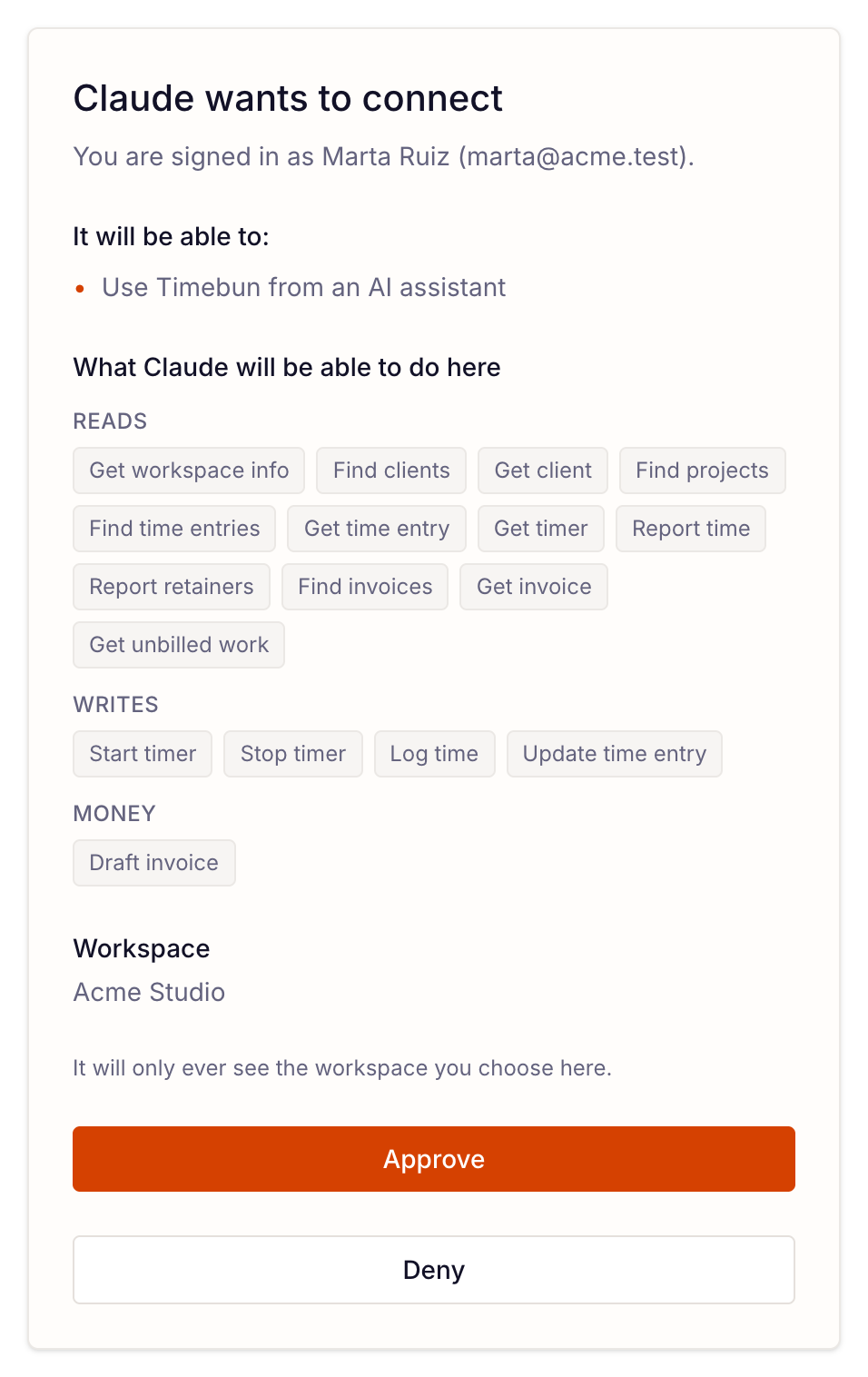
- On the Timebun screen that says the assistant wants to connect, check what it will be able to do. If you belong to more than one workspace, pick one under Which workspace should it reach?
- Click Approve.
Claude Desktop picks up the connector from your claude.ai account. For Claude Code, copy the command from the Claude tab on the Connections page and run it in your terminal.
Connect ChatGPT
- In Timebun, copy the Server address from the Connections tab, as above.
- In ChatGPT, open your profile menu → Apps & connectors → Advanced settings, and turn on Developer mode.
- Back in Apps & connectors, choose Create connector, name it Timebun and paste the address.
- Sign in to Timebun, pick the workspace and click Approve.
- In a chat, open + → More → Timebun to use it.
The ChatGPT desktop app picks up the connector from your chatgpt.com account. On a ChatGPT Business or Enterprise plan, an admin can add the connector once for everybody; each person still signs in to Timebun and approves their own connection.
Other assistants
Any assistant that can add a remote server by its address can connect the same way. The Other assistants tab on the Connections page has the steps. If yours won't connect, email support@timebun.com and tell us which one.
What an assistant can do
What you see on the consent screen depends on your role.
Everyone on the team: - see your workspace, your projects and your time entries - start, stop and check your timer - log time and correct a time entry
Admins and the Owner, as well: - look up clients, their balances and retainers - see everyone's time and run the team time report and the retainers report (the retainers report only on Unlimited or Enterprise) - look up invoices and what's still unbilled - draft an invoice from finished, unbilled work, on your Stripe account — for all of a client's work, or only the projects, dates and expenses you name
What an assistant can't do
- It never sends an invoice. A drafted invoice waits in Timebun for a person to review and send it.
- It doesn't email or message anyone, charge a card, refund, or change a client's hours balance.
- It doesn't create or change clients, projects, rates, people or plans.
- It never sees another workspace. To use it in a second one, connect again and pick that workspace.
For every tool in detail, see what the assistant can do and the full connection guide.
To disconnect, see Manage connections.