
Create an API token
An API token is a key that lets a script, a spreadsheet or your own tool reach your workspace. It acts as the person who created it, in this workspace only, and sees exactly what that person can see.
To connect Claude or ChatGPT you don't need a token — see Connect Claude or ChatGPT.
Before you start
- Only Admins and the Owner (shown as Portal admin in the app for now) see the API tokens tab.
- Your workspace's plan has to include the API: Unlimited and Enterprise do, Starter doesn't. A new workspace's 14-day Unlimited trial includes it. If your plan doesn't, the tab says Not on this plan and names the plans that do. The Owner can subscribe to Unlimited, or move to it, from the plan card under Settings → Workspace → General — see Timebun's plans.
- You'll be asked for your password when you open the page, the same as for your security settings.
Create a token
- Go to Settings → Workspace → Integrations and open the API tokens tab.
- Under Create a token, give it a Name you'll recognise later, such as "Reporting".
- Under What it may do, tick what it needs. Reading is always included.
- Choose when it Expires: 90 days, 1 year (the default) or Never.
- Click Create token.
- Under Your new token, click Copy and store it somewhere safe.
The token is shown once. If you lose it, revoke it and create another.
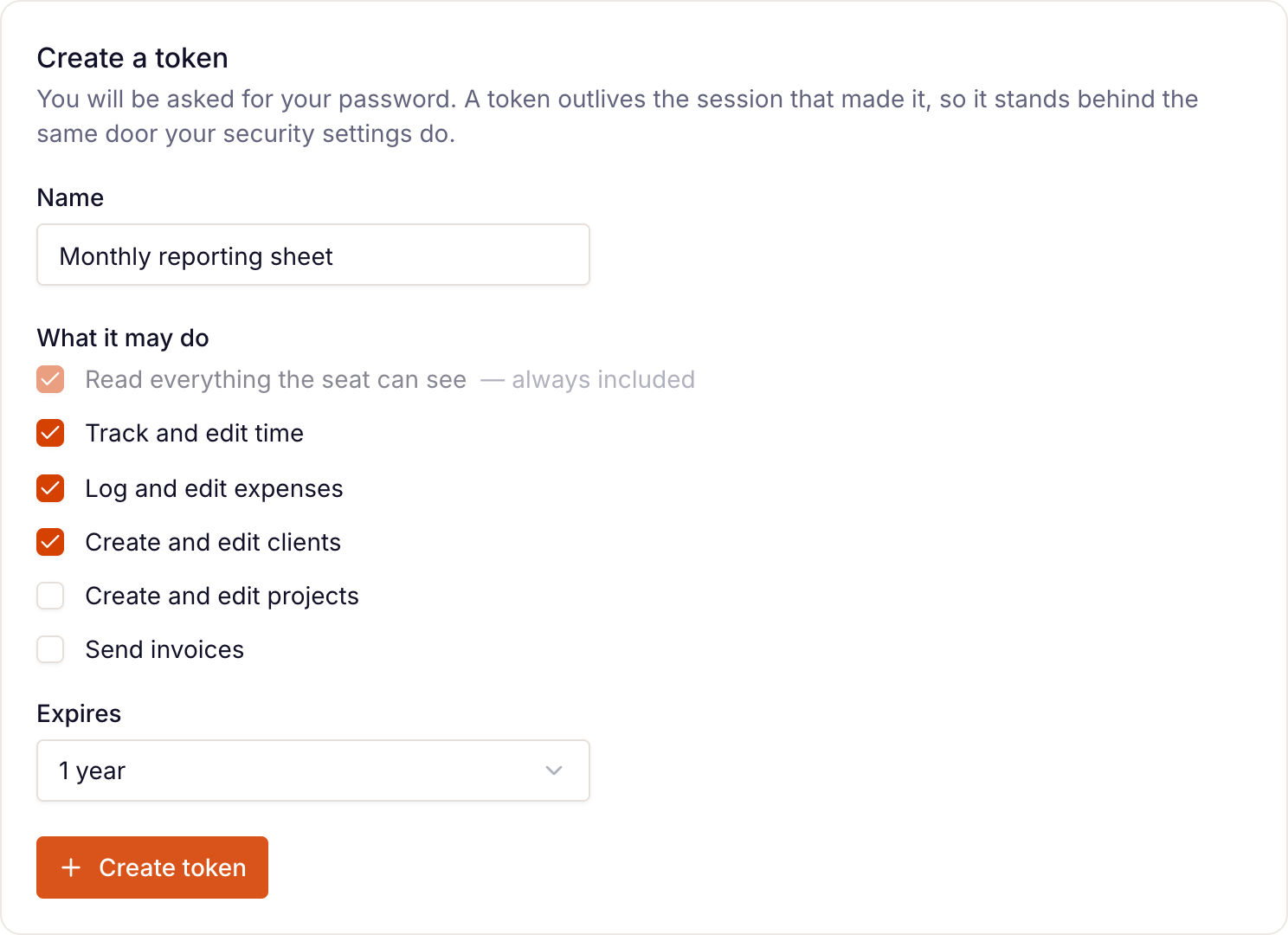
What a token can do
The permissions you can tick are Track and edit time, Log and edit expenses, Create and edit clients, Create and edit projects and Send invoices. Today the API can:
- read people, clients and their balances, projects, activity codes, expense categories, time entries, the timer, expenses, invoices (and who each was emailed to) and the four reports
- add, edit and delete time entries, and start and stop the timer (Track and edit time)
- add and edit expenses (Log and edit expenses)
- send a reminder for an invoice (Send invoices)
Nothing creates or edits a client or project through the API yet, even with those boxes ticked.
Use it
Send the token as a bearer token with each request to https://app.timebun.com/api/v1. The full reference is public at app.timebun.com/docs/api.
Revoke a token
Every live token in the workspace is listed with its Owner, Created, Expires and Last used date. Click Revoke, then Revoke token. It stops working at once and can't be brought back. Admins can revoke any token except those made by someone with the Owner role.
A token also stops working for good when its owner changes or resets their password, changes role, leaves the workspace or deletes their account.
If your plan stops including the API — for example, when your trial ends and you're on Starter — tokens stop working but aren't deleted. They work again, unchanged, if the plan comes to include the API.
If your workspace is read-only because its Timebun trial or subscription has ended, tokens can still read, but every change is refused with the code workspace_read_only. See Why is my workspace read-only?
Related: Manage connections, Roles and permissions.