
Sign in and switch workspaces
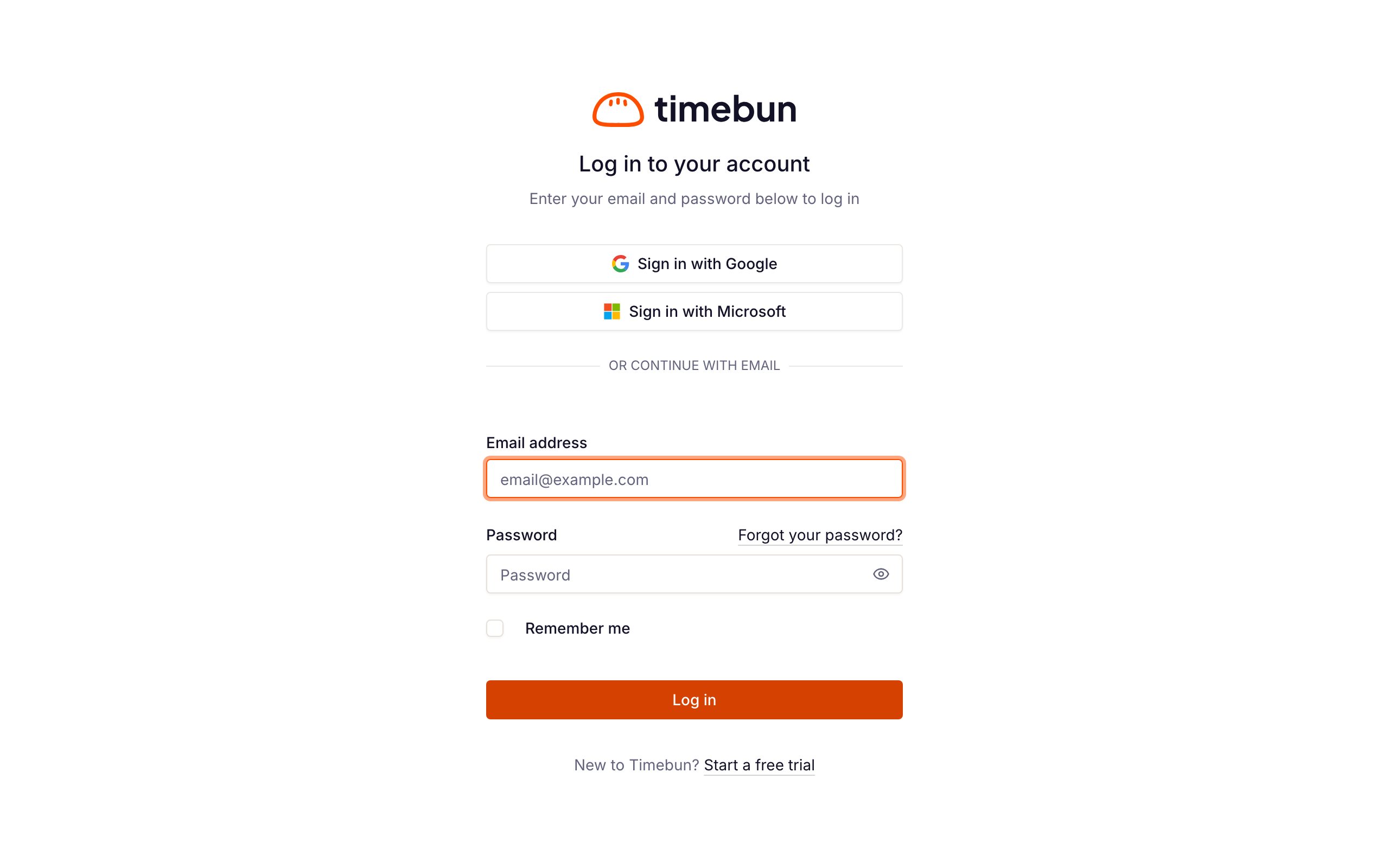
Sign in at app.timebun.com with the email address you signed up or were invited with.
- Joining an agency's workspace? You need an invitation from its admin — see Invite your team.
- Starting a workspace for your own firm? Click Start a free trial under the sign-in form — see Create your Timebun account.
Sign in
- Go to app.timebun.com.
- Enter your Email address and Password.
- Tick Remember me if this is your own device.
- Click Log in.
- If you've turned on two-factor authentication, enter the code from your authenticator app.
You can also click Sign in with Google or Sign in with Microsoft instead — as long as that account uses the same email address as your Timebun account. These buttons only sign in to an account that already exists; to start a new workspace with Google or Microsoft, use the sign-up page.
You land on the Track page, ready to start a timer.
Forgot your password?
- On the sign-in page, click Forgot your password?
- Enter your email and click Email password reset link.
- Open the email, choose a new password and click Reset password.
An Admin can also send you a reset link from the People page.
Didn't get the reset email?
- Check spam or junk for Reset your Timebun password.
- Check the address. It must be the email you sign in with. If you're not sure which one that is, ask an Admin: it's on the People page.
- Ask again. Click Forgot your password? once more. Each link lasts 60 minutes, so an old one may already have run out.
- Still nothing? Ask an Admin to use Send password reset on the People page.
If you belong to more than one workspace
One sign-in can hold a place in several workspaces. The first time you sign in with more than one, Timebun asks Which workspace? — click the one you want.
After that, Timebun remembers the workspace you used last and takes you straight there.
Switch workspaces
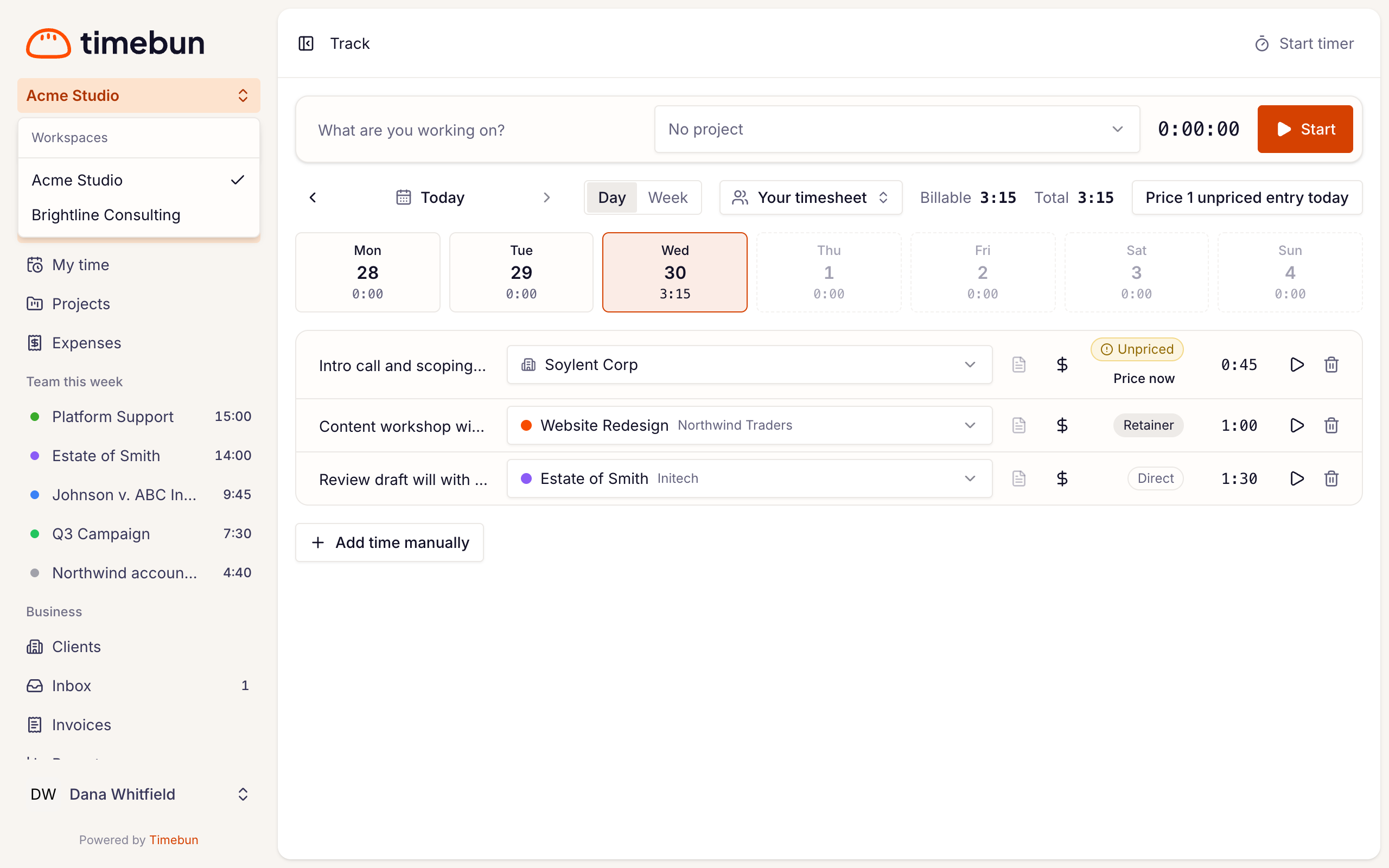
- Click the workspace name at the top of the sidebar.
- Under Workspaces, pick another one. A check mark shows the one you're in.
You land on that workspace's home page. If you only belong to one workspace, the name isn't clickable.
Your agency's own address
Some agencies have their own Timebun address, such as yourfirm.timebun.com. On that address:
- The sign-in page shows your agency's name and logo, and no free-trial link.
- You go straight into that agency's workspace — there's no picker.
- You need a place in that workspace to sign in there. To reach your other workspaces, sign in at app.timebun.com instead.
Want an address like this for your agency? It's included in Unlimited and Enterprise (see Timebun's plans); email support@timebun.com with the address you'd like. If your plan stops including it, the address sends everyone to app.timebun.com until it's included again.
Switching to a workspace that has its own address takes you to that address, still signed in. In the installed phone app, a workspace with its own address opens in your browser instead — see Install Timebun on your phone.
Sign out
Click your name at the bottom of the sidebar, then Log out.