
Your profile, password and two-factor authentication
Your profile and security settings belong to you, not to a workspace: if you're in more than one agency, the same name, email, password and two-factor settings apply to all of them.
Open them from Settings → Account, or click your name at the bottom of the sidebar and choose Profile, Security or Appearance.
Profile
At Settings → Account → Profile:
- Name and Email address — change them and click Save.
- Your timezone — the zone your days, your timer, Track, My time, Team time, project pages, reports and messages are read in. Dates on a client's record — a client's Time tab, invoices and their due dates, when hours expire and when a retainer renews — follow the workspace's timezone instead, so everyone, clients included, sees the same day. It's set from your browser the first time you sign in, and saves as soon as you pick a new one. The workspace's own timezone is shown for comparison.
- Appearance — Light, Dark or System (follow this device). Saved the moment you pick one, for this device.
If you change your email address, it becomes the address you sign in with and where password reset links go. Timebun emails your old address to say it changed, and asks you to verify the new one — until you do, you won't be able to use the app.
Change your password
- Go to Settings → Account → Security.
- Enter your Current password, then your New password twice.
- Click Save.
Passwords need at least 8 characters, with upper- and lower-case letters, a number and a symbol. Timebun also refuses passwords known to have leaked.
Turn on two-factor authentication
Two-factor authentication asks for a code from an authenticator app on your phone each time you sign in.
- Go to Settings → Account → Security.
- Under Two-factor authentication, click Enable 2FA. You may be asked for your password first.
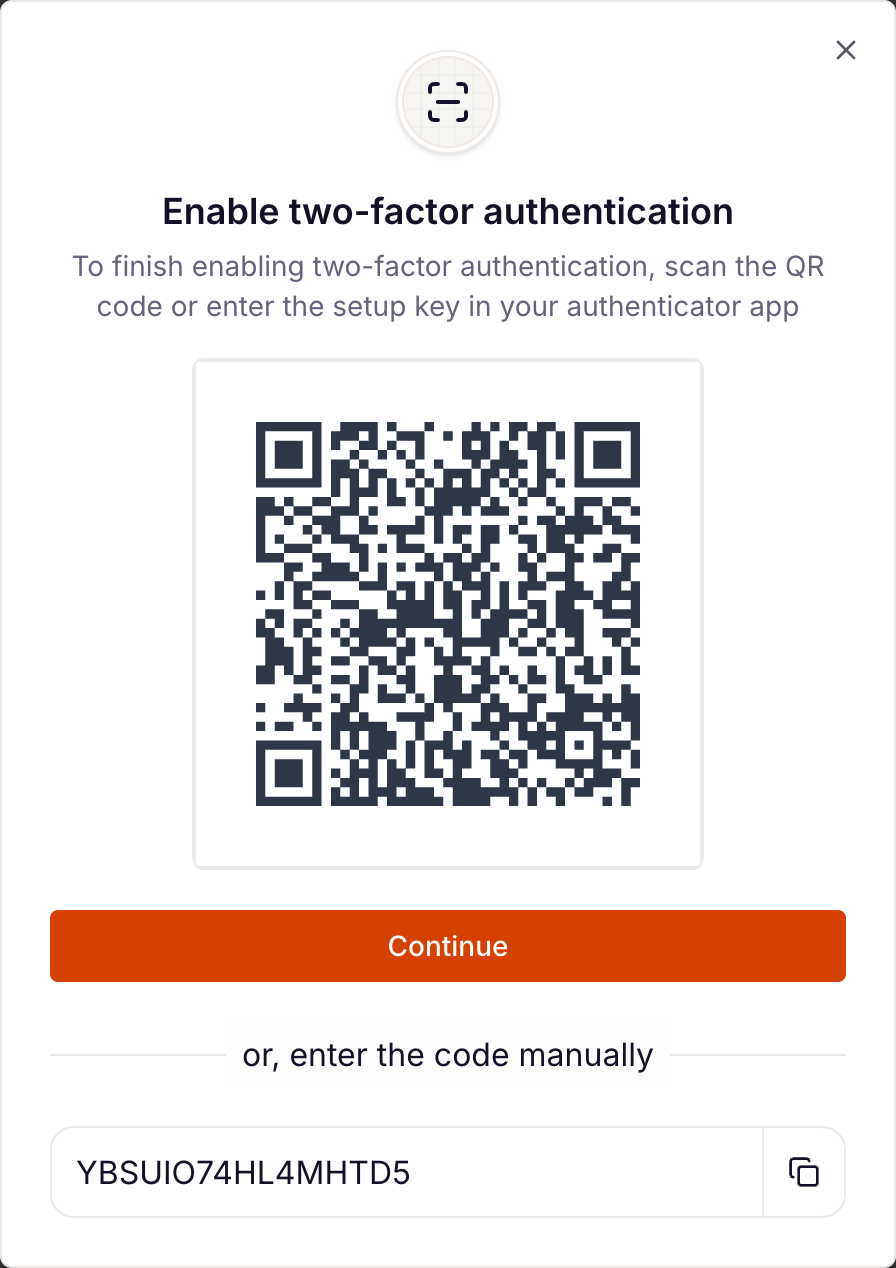
- Scan the QR code with your authenticator app, or enter the setup key by hand, then click Continue.
- Enter the 6-digit code from the app and click Confirm.
Recovery codes
Recovery codes let you sign in if you lose your phone. After turning on two-factor, click View recovery codes and store them somewhere safe, such as a password manager. Each code works once. Click Regenerate codes for a fresh set — the old ones stop working.
To sign in with one, choose login using a recovery code on the code screen.
Turn off two-factor authentication
At Settings → Account → Security, click Disable 2FA.
Locked out?
- Forgot your password — use Forgot your password? on the sign-in page, or ask an Admin to send you a reset link. See Sign in and switch workspaces.
- Lost your phone and your recovery codes — email support@timebun.com from your account's address and we'll help. Nobody in your workspace can turn two-factor off for you.
Delete your account
There's no delete button in the app. To delete your Timebun account, email support@timebun.com from the address you sign in with and we'll help. Your account is shared by every workspace you belong to; to leave just one agency, ask its Admin to deactivate you there.