
Install Timebun on your phone
Timebun works in any phone browser, but adding it to your Home Screen makes it open full screen with its own icon, like an app. On an iPhone, it's also the only way Timebun can send you notifications.
There's nothing to download from an app store. The app needs an internet connection: offline, it shows You're offline with a Try again button, and you can't start or stop a timer until you're back online. A timer that's already running keeps counting.
Add Timebun to your Home Screen
iPhone and iPad
- Open app.timebun.com in Safari (or Chrome) and sign in.
- Tap Share — at the bottom of Safari, or in Chrome's menu.
- Choose Add to Home Screen, then Add.
- Open Timebun from your Home Screen.
Android
- Open app.timebun.com in Chrome and sign in.
- Tap Install app in Chrome's menu, or tap Install on the Timebun banner when it appears.
Computer
Chrome and Edge show an install icon at the right of the address bar.
The same steps are on Settings → Account → Notifications, under Add Timebun to your Home Screen.
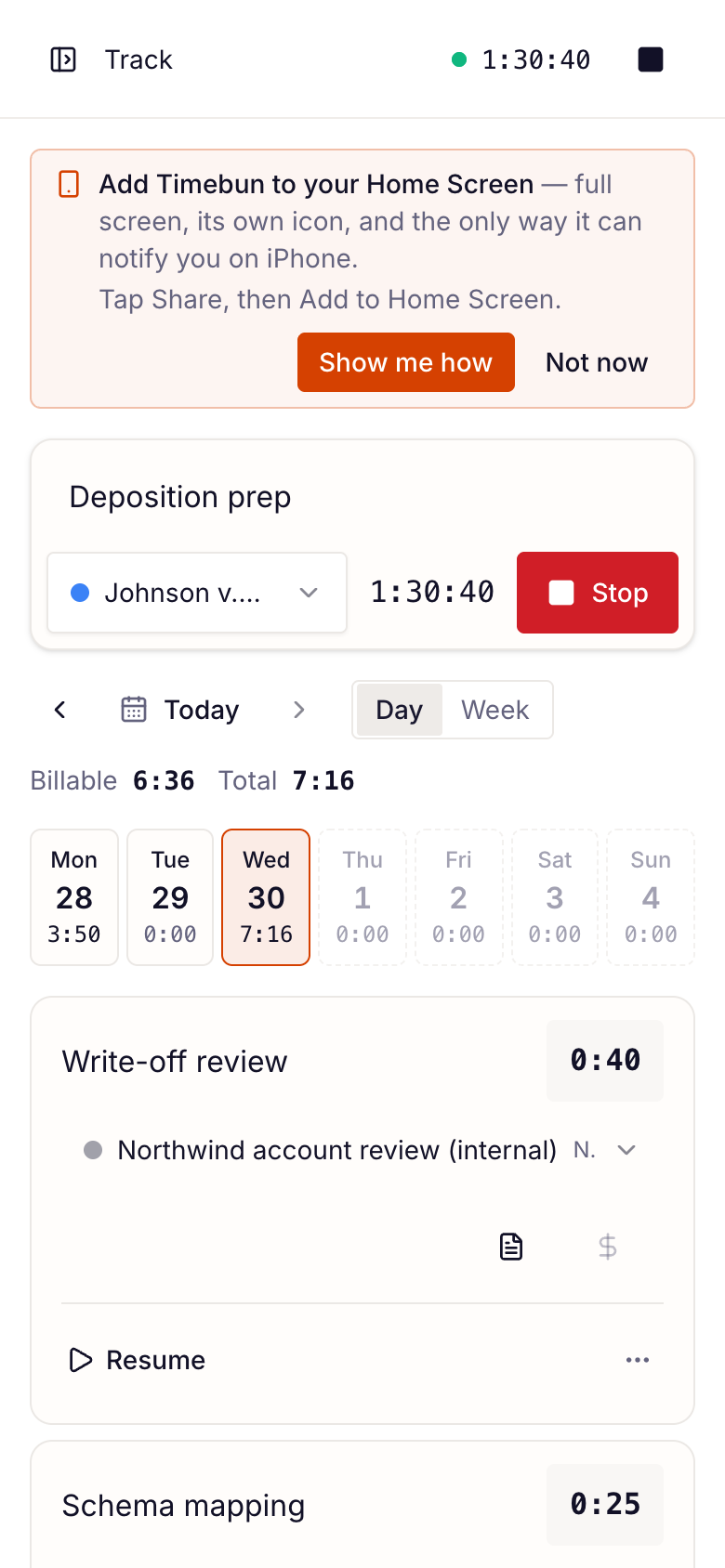
The install banner
On a phone browser, the Track page shows a banner offering to add Timebun to your Home Screen. Tap Install (or Show me how) to install, or Not now to hide it for a while. It doesn't appear once Timebun is installed.
Turn on notifications
Timebun can notify you on your phone the moment a client writes to you in the Inbox. Notifications are set per device — turning them on for your phone leaves your computer alone, and the other way round.
- On the device, go to Settings → Account → Notifications. On an iPhone, open Timebun from your Home Screen first.
- Switch on Notify me on this device.
- Allow notifications when your phone asks.
You can also tap Turn on on the prompt in the Inbox. Messages still reach you by email either way. See Notifications.
If you said no when your phone asked, Timebun shows Notifications are blocked. Allow notifications for Timebun in your browser's or phone's settings, then come back and switch it on.
If your agency has its own address
If your agency uses its own address (such as yourfirm.timebun.com), install Timebun from that address. The installed app then carries your agency's name and icon, and receives its notifications. An app installed from a different address won't get them.
In the installed app, choosing a different workspace that has its own address opens it in your browser. To use that workspace as an app too, install it from its own address.