
Find anything with search
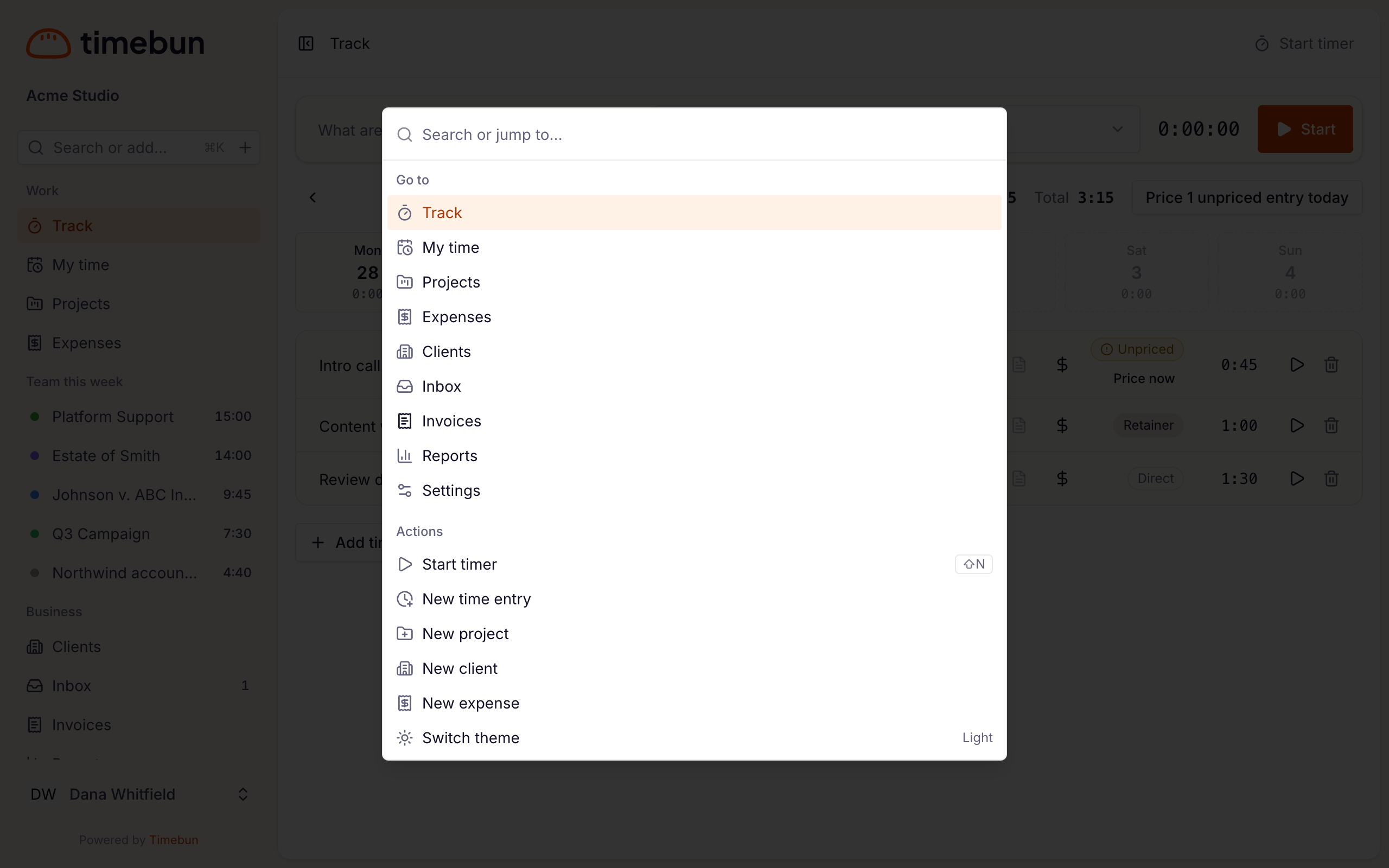
One search box finds projects, clients, invoices and your own time entries, jumps to any page or setting, and starts a timer — without leaving the keyboard.
Open it
- Press ⌘K on a Mac, or Ctrl K on Windows.
- Or click Search or add… at the top of the sidebar.
- Click the + beside it to open straight onto the list of actions.
Search
Start typing. Results appear in groups, up to five in each:
- Projects — by name, with the client beside it. Archived projects are marked Archived.
- Clients — by name, or by a contact's email address.
- Invoices — by invoice number or client name.
- Time entries — your own entries, by description.
Use the arrow keys and Enter to open a result, or click it.
What you can find follows your role: Team members don't see clients or invoices. See Roles and permissions.
Go to a page or setting
Before you type, the list shows Go to — every page in your sidebar — and the results you opened recently from search under Recent (remembered on this device). Settings pages appear as you type: search for what you want to change, such as "payment terms", "dark mode" or "invite", and the right settings page comes up.
Do something
The Actions group lets you:
- Start timer or Stop timer
- New time entry
- New project and New client (Admins and Owners — shown as Portal admin in the app for now)
- New expense
- Switch theme — cycle between light, dark and system
If your workspace requires a project on every entry, Start timer asks you to pick a project first.
Start or stop a timer from anywhere
Press Shift N (⇧N on a Mac) on any page to start a timer, or stop the one that's running. It doesn't fire while you're typing in a field.
On a phone or tablet, keyboard shortcuts aren't shown — tap Search or add… in the menu instead.