
Log an expense
Log money you spent on a client's behalf — a taxi, a filing fee, a courier — so it can be billed to them.
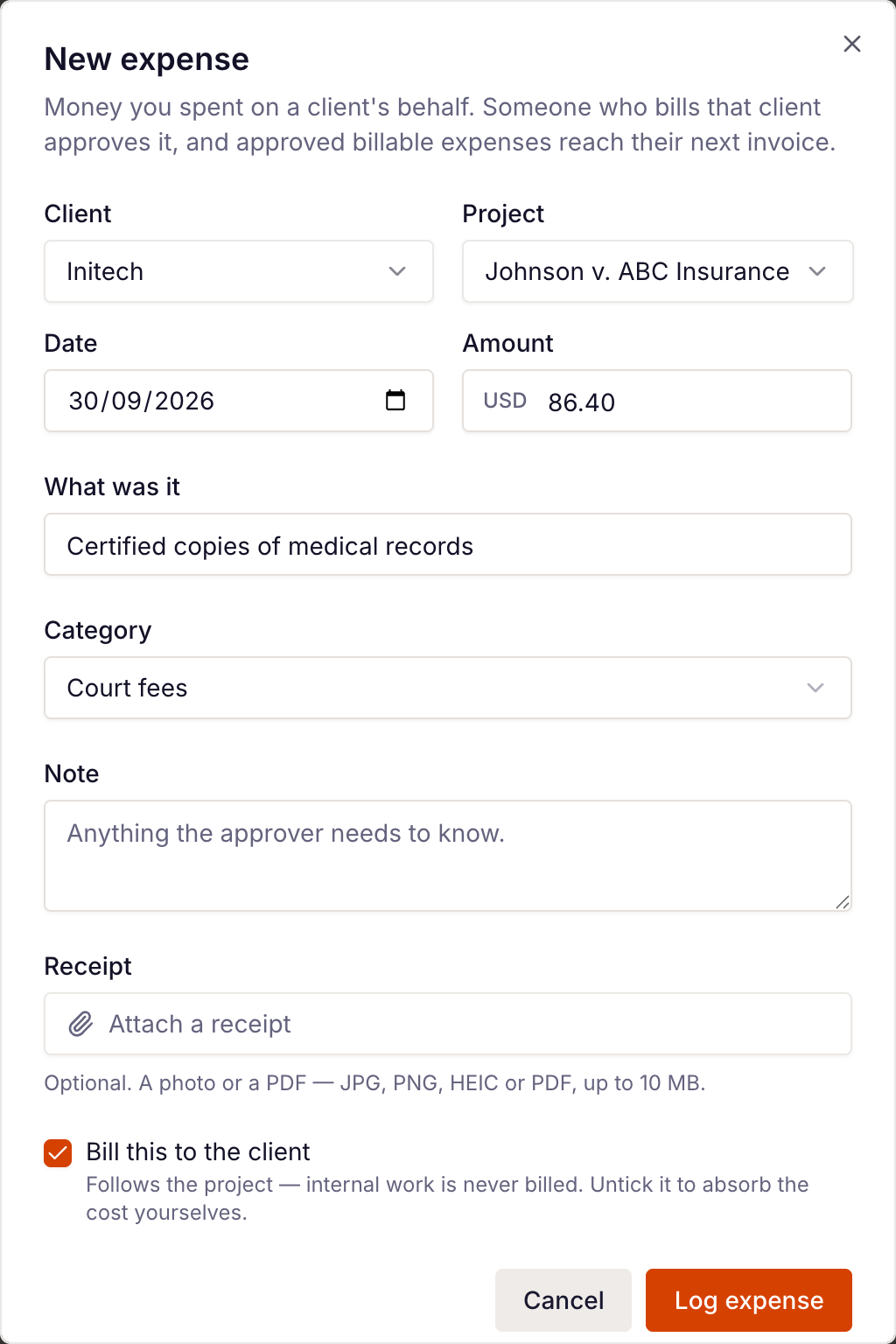
- Go to Expenses in the main menu and click New expense.
- Pick the Client. Only active clients are listed. The amount is in that client's currency.
- Optionally pick a Project of theirs, or leave No project.
- Set the Date you spent it and the Amount.
- Under What was it, write what the client will read — for example "Taxi to the client site".
- Optionally choose a Category (Expense categories) and add a Note for whoever approves it.
- Optionally click Attach a receipt — a photo or PDF (JPG, PNG, HEIC or PDF, up to 10 MB).
- Leave Bill this to the client ticked to bill it, or untick it if the agency is absorbing the cost.
- Click Log expense.
Billable or not
Bill this to the client follows the project: it starts unticked for an internal project and ticked otherwise, including when there's no project. You can always change it. Expenses you don't bill show a Not billable badge and never reach an invoice.
Approval
- If you're an Admin or the Owner (shown as Portal admin in the app for now), your expense is Approved straight away.
- If you're a Team member, it's Pending until an Admin approves it or sends it back with a reason.
Only approved, billable expenses reach an invoice — see Billing expenses to a client.
Your list
The Expenses page shows All, Pending, Approved or Sent back. Team members see only the expenses they logged; Admins and the Owner see everyone's. Click the paperclip to open a receipt. Export CSV downloads the list.
Edit or delete
Use the ⋯ menu on a row, then Edit or Delete.
- An expense that was Sent back shows the reason. Fix it and save — or just attach the missing receipt — and it goes straight back to Pending.
- If a Team member changes the client, project, category, date, title, note, amount or billable box on an approved expense, it goes back to Pending for approval again. Adding a receipt doesn't.
- Deleting an expense also deletes its receipt, and it can't be restored.
- Once an expense is on an invoice it shows Invoiced and can't be edited or deleted.
To swap or remove a receipt, open Edit and use the icons beside the file.