
Message your agency
Messages is your one conversation with your agency's team. Write there instead of email and everything stays in one place. If you don't see Messages in the menu, your agency doesn't use it.
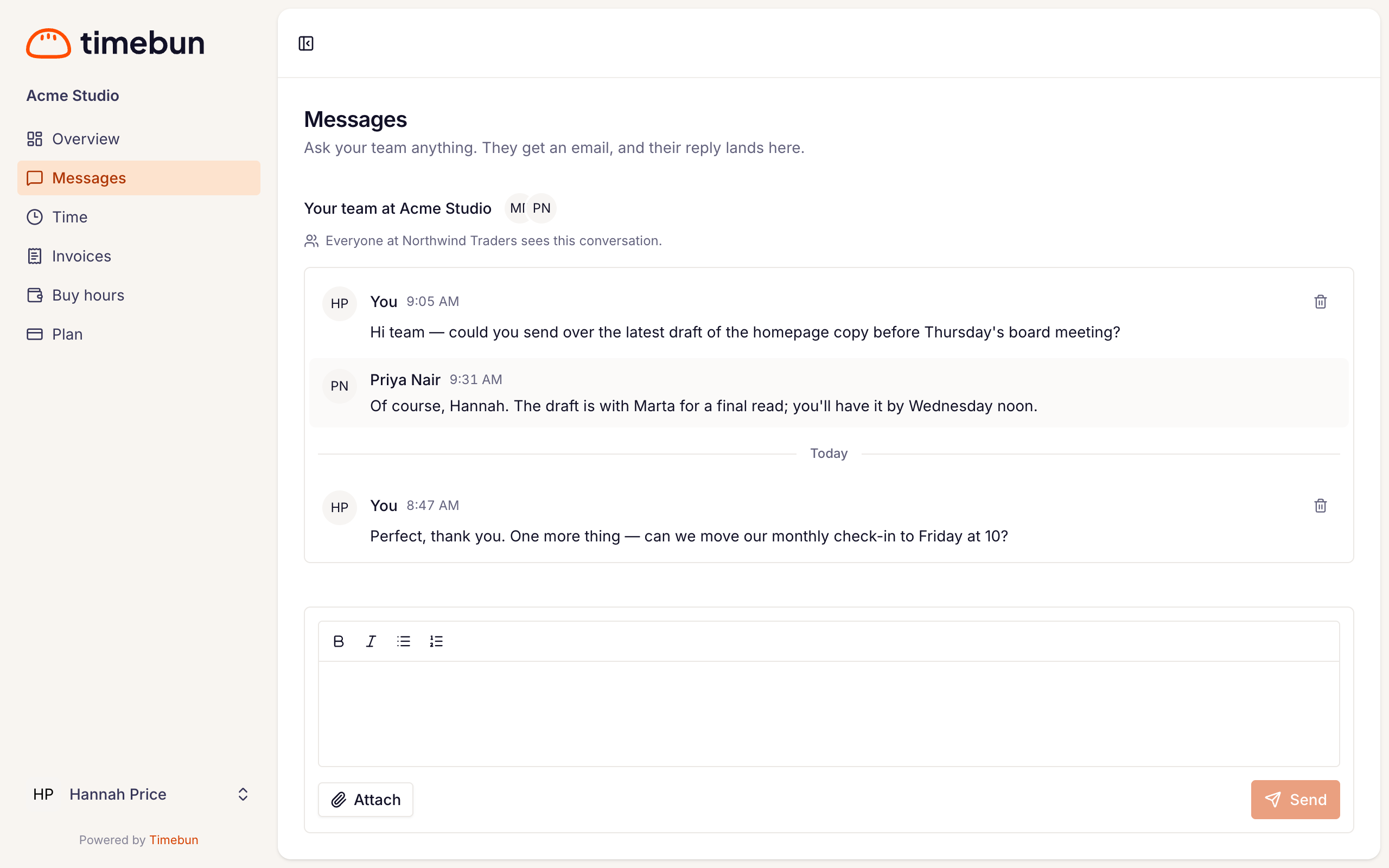
Who reads it
- At the top you see Your team at … — the people at your agency who look after you. They're told about every message you send.
- Everyone at your company who has access to the portal sees the same conversation, and can read and reply.
Send a message
- Click Messages in the menu.
- Type in the box at the bottom. Press Enter for a new line.
- Click Send, or press ⌘ Enter (Ctrl Enter on Windows).
To send a file, click Attach (the paperclip on a phone) and pick one: images, PDF, Word, Excel, CSV, text or ZIP files, up to 20 MB each, one per message.
To delete a message you sent, click the bin icon beside it (Delete this message).
When your agency replies
Replies appear in the conversation, and you get an email New message from … at … with a Reply button that brings you back here. If you haven't opened the conversation since, you won't get another email for each new reply — just one until you look.
The menu shows a count of unread conversations next to Messages.
Get notifications on your phone or computer
At the top of Messages you may see "Get a notification on this device when your agency writes." Click Turn on and allow notifications when your browser asks.
You can also do this any time: click your name at the bottom of the menu, choose Notifications, and switch on Notify me on this device. It works on each device separately.
On an iPhone, first add the portal to your Home Screen: in Safari, tap Share, then Add to Home Screen, then open it from the Home Screen and switch notifications on there. The Notifications page shows these steps too.