
Get notified about client messages
Timebun tells you about new client messages in two ways: by email, always, and by a notification on your device, if you turn it on. Device notifications are set up per device, so turning them on for your phone leaves your laptop alone.
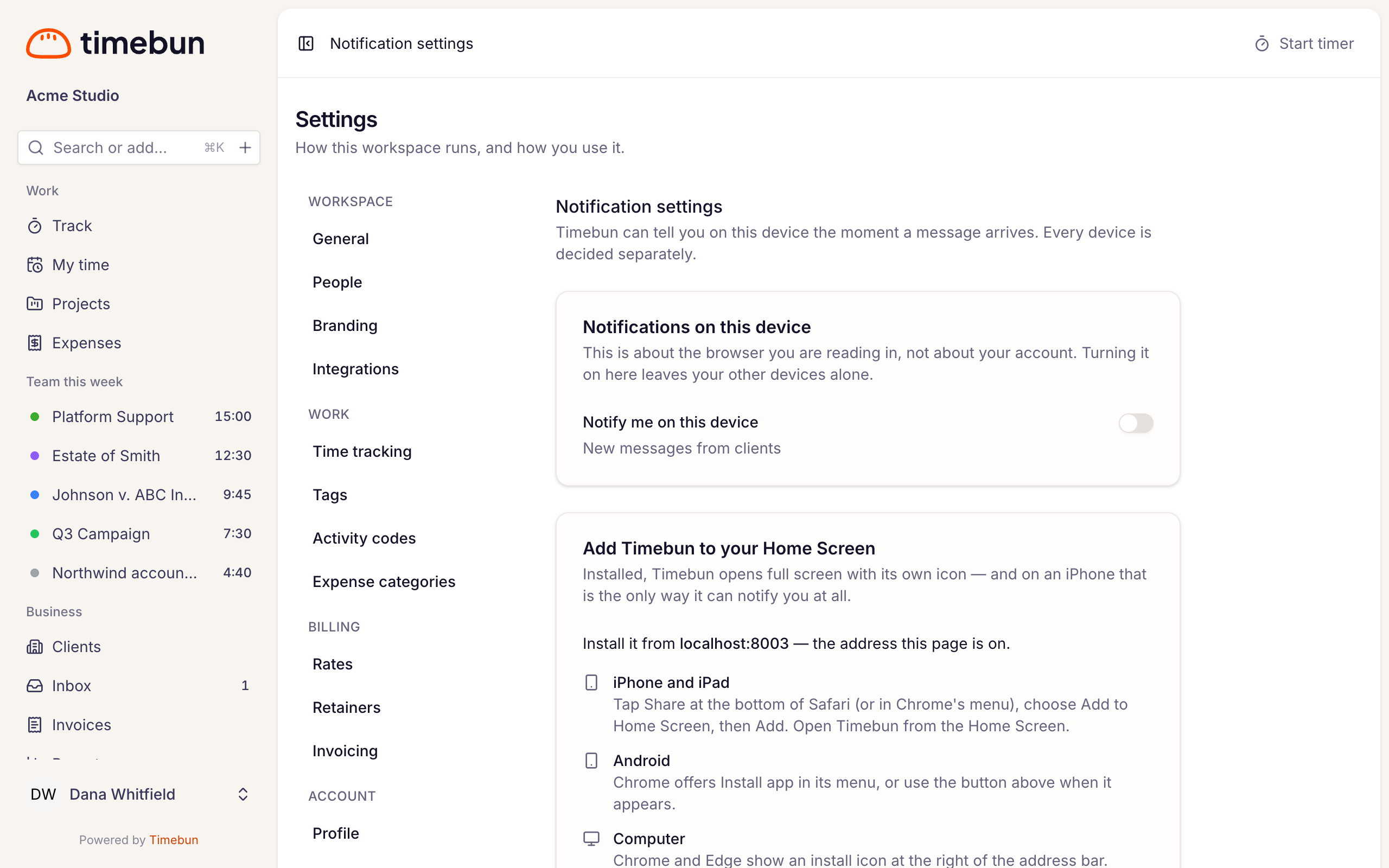
Turn on notifications on this device
- Click your name at the bottom of the sidebar and choose Notifications. You'll also find it at Settings → Account → Notifications.
- Switch on Notify me on this device.
- Allow notifications when your browser asks.
You'll get New messages from clients on this device. Tapping one opens the conversation.
You may also see a banner in your Inbox: "Get a notification on this device when a client writes." Click Turn on to do the same thing, or Not now to hide it.
On an iPhone or iPad
An iPhone can only show notifications from Timebun once it's on your Home Screen.
- In Safari, tap Share, then Add to Home Screen, then Add.
- Open Timebun from the Home Screen.
- Go to Notifications and switch on Notify me on this device.
If your agency has its own address, install it from that address, or it won't receive notifications. See Install Timebun on your phone.
If notifications are blocked
If you said no when the browser asked, the page shows Notifications are blocked. Your browser won't ask again: allow notifications for Timebun in the browser's site settings (the icon left of the address bar on a computer, Settings → Notifications on a phone), then come back and switch it on.
If the page says This browser cannot show notifications, use Chrome, Edge or Firefox, or install Timebun on your iPhone. Emails still arrive either way.
Emails you get
About clients and messages
- A new message from a client you look after, or an internal note from a colleague. One email per conversation until you open it. See Client messaging settings for who is told.
- A client is running low on hours, or has run out (Admins and the Owner — shown as Portal admin in the app for now). See Low hours warning.
- A client uploaded files — headed … uploaded a file, listing them, each name a link that opens that file, with an Open their files button. It goes to the people who look after that client under Our team, or to every Admin and the Owner when nobody is assigned. Several uploads close together come in one email. See Share files with a client.
- A client cancelled their plan or is moving to a smaller one from the portal (Admins and the Owner).
- A client was charged twice for a plan (Admins and the Owner). This happens if a client already on a plan completes a second payment for one. Timebun cancels the second plan straight away, so it won't renew and gives no hours, and the email is headed Needs a refund. The money has still been taken: refund it yourself in your Stripe dashboard, using the subscription the email names. Timebun never refunds on its own.
About invoices
- Copy of invoice … — if you set an address under Settings → Billing → Invoicing → Send a copy of every invoice to, it gets a copy of every invoice Timebun emails, saying who it went to (or that nobody at the client was emailed because they have no invoice recipient). Reminders and statements of hours aren't copied. See Send an invoice and who receives it.
If you send statements of hours, they go only to each client's invoice recipients. Nobody on your team is emailed when they go out; check them on the client's Statements tab, which is flagged not sent when the latest one didn't reach everyone.
About your account
- You've been invited to … — an invitation to join a workspace. See Invite your team.
- You've been added to … on Timebun — an agency imported its Harvest account and matched your email address to one of its people, so your existing Timebun account now has a place in that workspace too. See Import your data from Harvest.
- Reset your Timebun password — when you click Forgot your password?, or an Admin sends you a reset link. The link lasts 60 minutes.
- Your Timebun sign-in address was changed — sent to your old address when the email on your profile changes. If you didn't do it, email support@timebun.com straight away.
These emails can't be turned off.
Clients get the same kind of notifications about your replies. See Message your agency in the client help.